
How to use Clipzy
Save videos from TikTok, Instagram, YouTube, Facebook and Pinterest in three steps: copy the link, paste it, download. Pick your device below.
How to download videos without a watermark
Copy Video Link
Open the video in TikTok, Instagram, YouTube, Facebook or Pinterest, tap Share and copy the link.
Paste Link
Paste the link into the box on clipzy.video and tap the search button.
Download
Pick a quality and save the video, or the MP3, to your device.
Download videos on iPhone and iPad
Use Safari. No app needed.
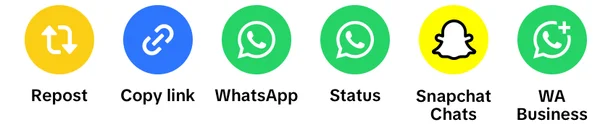
Copy the link
In TikTok, Instagram, YouTube, Facebook or Pinterest, tap Share, then Copy link.
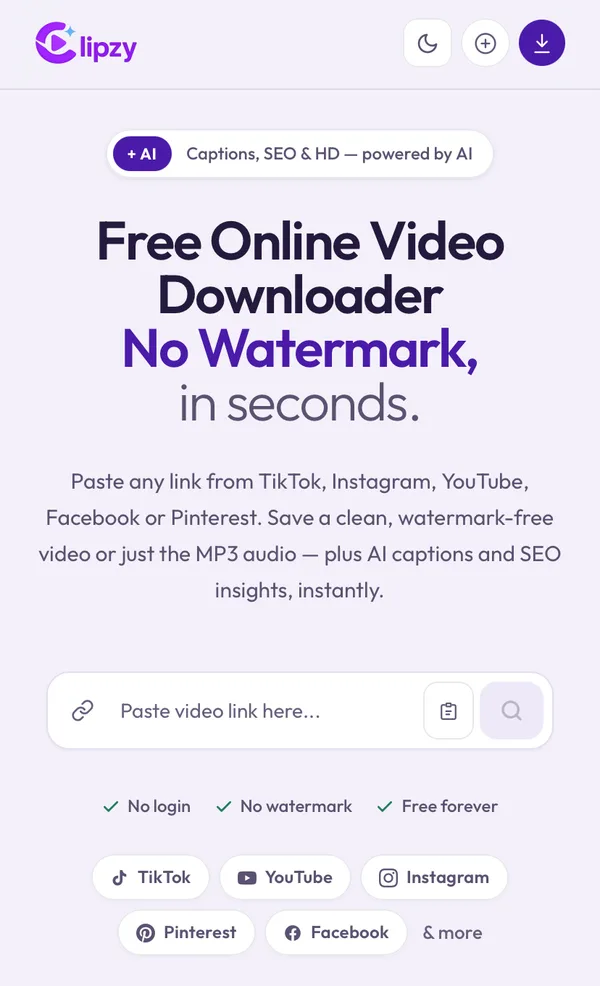
Paste it into Clipzy
Open clipzy.video, tap the paste button, then the search button.
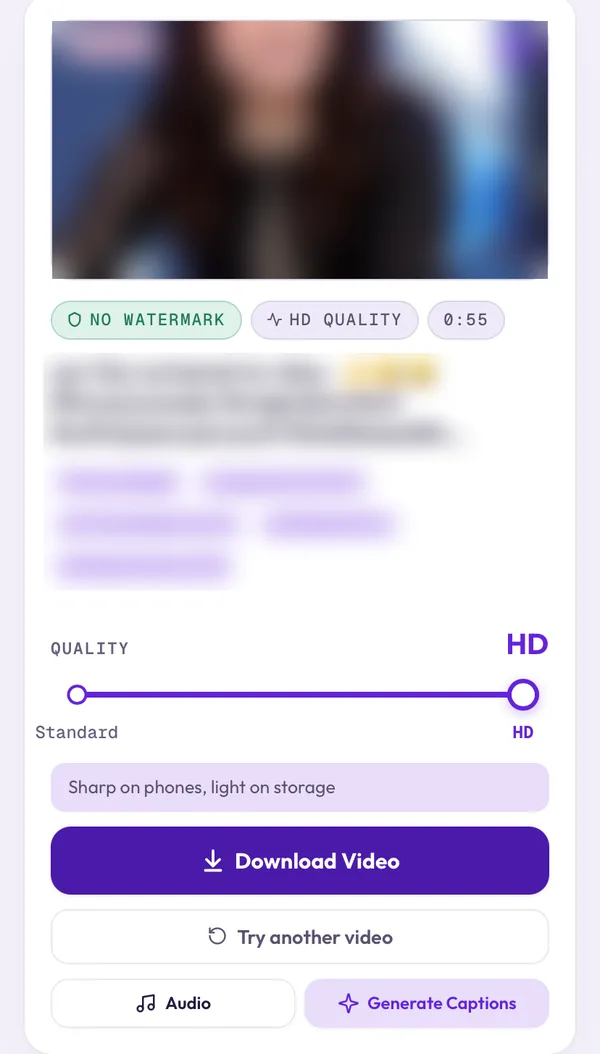
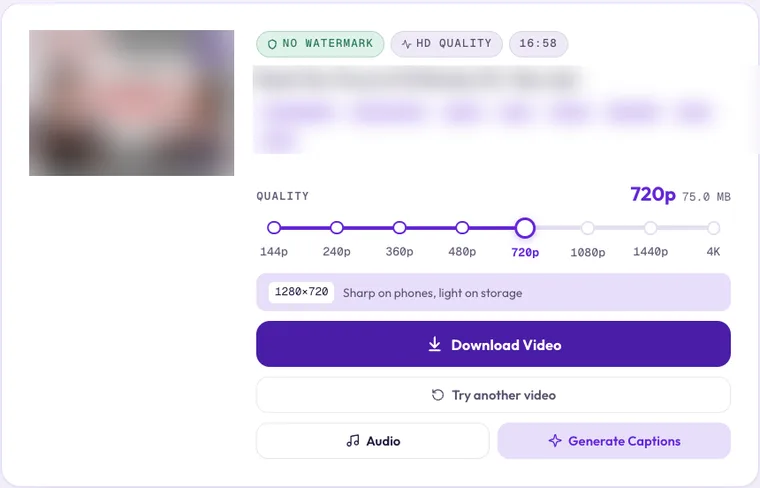
Pick a quality and tap Download Video
Slide to Standard or HD. Want only the sound? Tap Audio to save an MP3 (TikTok, Instagram and YouTube).
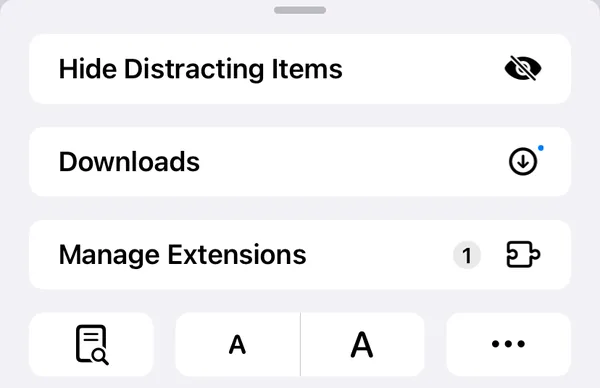
Open your downloads
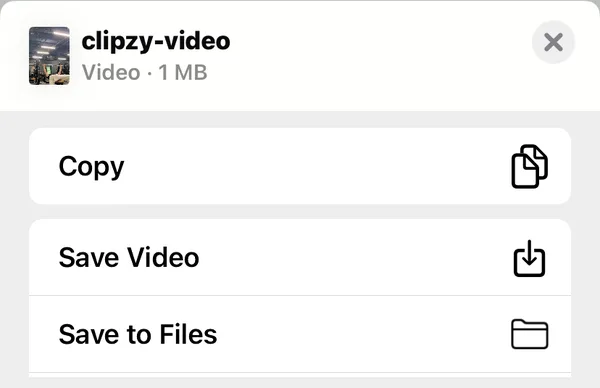
Tap the aA button in the Safari address bar, then Downloads, and tap clipzy-video.
Save it to Photos
Tap Share, then Save Video. Done: the video is in your Photos app.
Download videos on Android
Use Chrome or any browser. No app needed.
Copy the link
In TikTok, Instagram, YouTube, Facebook or Pinterest, tap Share, then Copy link.
Paste it into Clipzy
Open clipzy.video, tap the paste button, then the search button.
Pick a quality and tap Download Video
Slide to Standard or HD, or tap Audio to save an MP3.
Open the video
Tap Open on the "Download complete" message. Later, find it in Gallery or in Files, under Downloads.
Download videos on the web (Windows or Mac)
Works in Chrome, Edge, Firefox and Safari.
Copy the link
Copy the video address from your browser bar, or use Share, then Copy link.
Paste it into Clipzy
Click the paste box on clipzy.video, press Ctrl+V (Cmd+V on Mac), then press Enter.
Pick a quality and click Download Video
Slide from 144p up to 4K, where the video has it. The size shows before you download. The file goes to your Downloads folder.
Get captions and hashtags for reposting
Free with every video. Handy when you repost a clip on your own account.
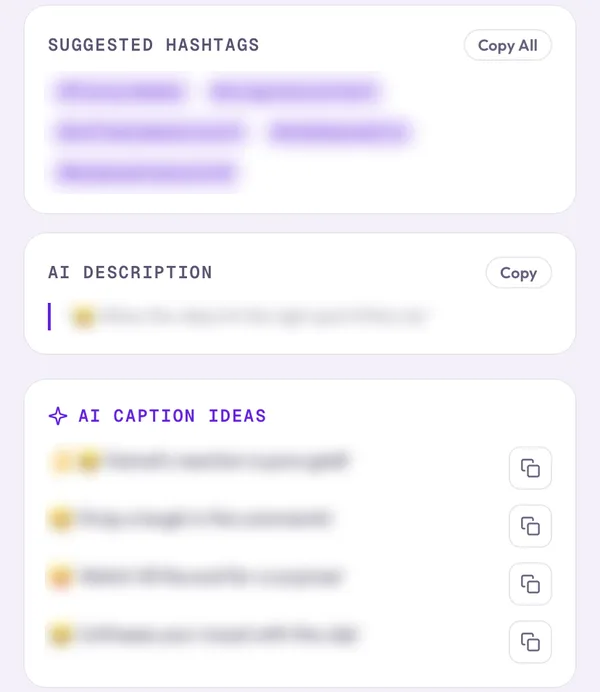
Tap Generate Captions
You find it under the Download Video button, after you paste a link.
Copy what you like
Pick a caption idea, copy the hashtags with Copy All, or copy the AI description.
Install Clipzy on your phone or computer
Clipzy installs straight from your browser, with no app store. It then opens from your home screen like any app.
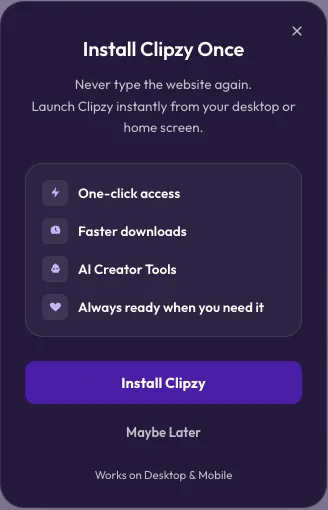
Tap the purple download button
It sits at the top right of clipzy.video, then tap Install Clipzy.
On iPhone: Add to Home Screen
In Safari, tap Share, scroll down, tap Add to Home Screen, then Add.
On Android or a computer: confirm Install
Chrome asks to install Clipzy. Tap Install. You can also use the Chrome menu, then Install app.
Ready to try it?
Paste your first link. It's free, with no signup.
Open the downloaderStuck on one platform? Read our step-by-step guides.