
Saving a Pin in the Pinterest app only adds it to a board, and the "Download image" option doesn't appear for video Pins. To keep the video itself on your iPhone, for offline viewing, a mood board or editing, you need the MP4 file. Safari and the Pin's link are all it takes.
Step 1: Copy the Pin Link in the Pinterest App
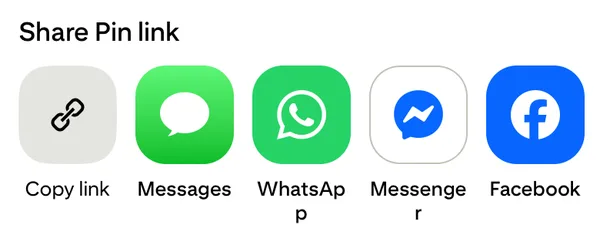
Open the video Pin, tap the Share icon, then Copy link. The app gives you a short pin.it link, which works exactly like a full pinterest.com link.
Step 2: Paste It into Clipzy in Safari
- Open Safari and go to the Pinterest video downloader.
- Tap Paste, then Analyze.
- Tap Download Video.
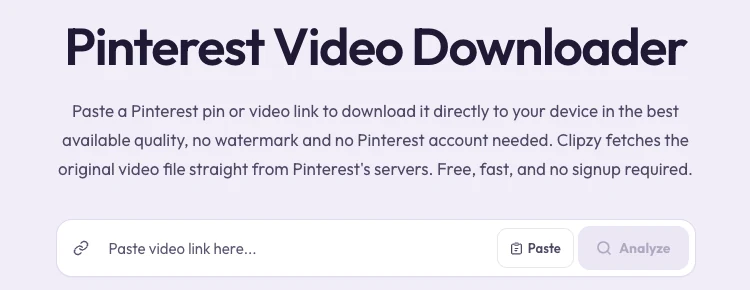
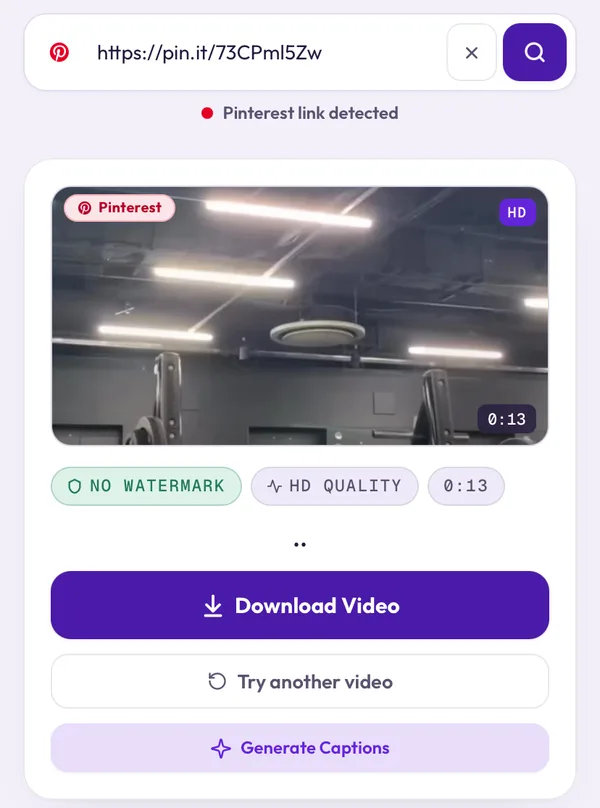
Open Clipzy in Safari itself, not in a browser inside another app. In-app browsers often can't save files.
Step 3: Move the Video from Files to Photos
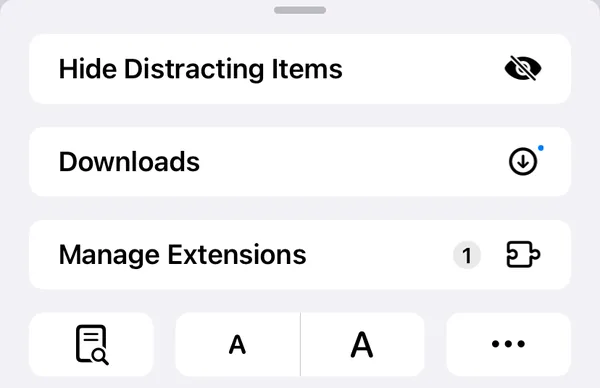
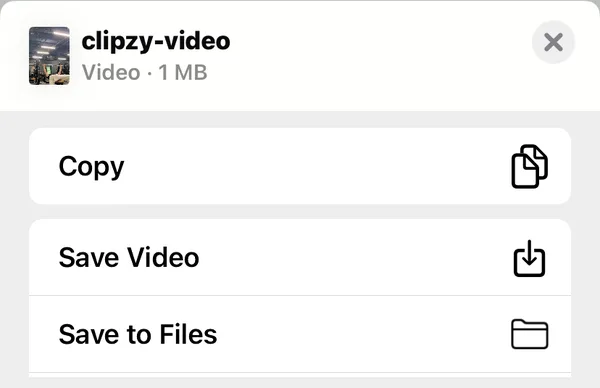
While it downloads, a small blue arrow appears on the page-menu icon at the left of Safari's address bar. Tap that icon and choose Downloads to see the file. Safari also saves the MP4 to the Files app, under Downloads. Tap the video to open it, tap Share and choose Save Video to put it in your Camera Roll.

Idea Pins and Multi-Page Pins
Some Pins are built from several pages. Swipe to the page with the video you want before you copy the link. Image-only Pins have no video to download; for those, Pinterest's own "Download image" option is the quickest way.
Common iPhone Problems
- Nothing happens after tapping Download: you are in an in-app browser. Open the page in Safari.
- The video opens in a new tab: tap Share on that tab and choose Save Video.
- No result after Analyze: the Pin may be deleted, from a secret board, or an image Pin rather than a video.
- Can't find the file: check Files → Recents, or tap the download arrow in Safari's address bar.
- Wanted the music only: audio-only download isn't available for Pinterest. Clipzy saves Pinterest Pins as video.
Frequently Asked Questions
Do I need a Pinterest account?
No. You only need the link to a public Pin. Clipzy never asks for your Pinterest login.
Will the video keep its quality?
Yes. You get the file Pinterest serves for that Pin, with no extra compression or watermark added by Clipzy.
Does this work on iPad?
Yes. The steps are identical in Safari on iPad.
For desktop and Android steps, read the complete Pinterest video download guide, or open the Pinterest downloader.