
On iPhone, Instagram's bookmark only saves a Reel inside the app, and screen recording captures your notifications and lowers the quality. You don't need an app from the App Store either. Safari and a Reel's link are enough to save a real HD video file to your Camera Roll in under a minute.
Step 1: Copy the Reel Link in Instagram
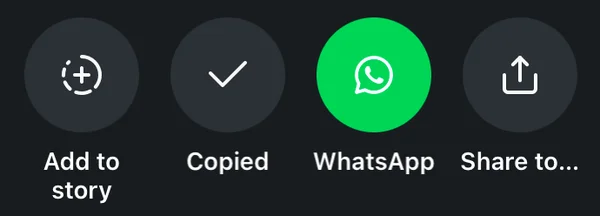
Open the Reel, tap the Share (paper plane) icon, then Copy link. You can also tap the three dots (⋯) and choose Copy link. Links shared with you in a DM work too, as long as the Reel is from a public account.
Step 2: Paste It into Clipzy in Safari
- Open Safari and go to the Instagram Reels downloader.
- Tap Paste (Clipzy may also offer "Instagram link detected, tap to paste").
- Tap Analyze, then Download Video.
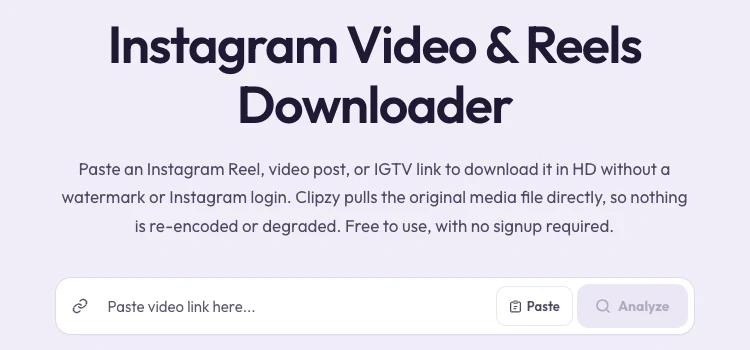
Use Safari rather than the browser built into Instagram. In-app browsers often can't save files, so the download may seem to do nothing.
Step 3: Find the Video in the Files App
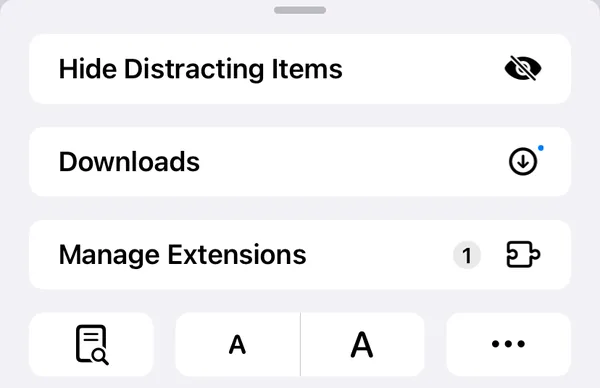
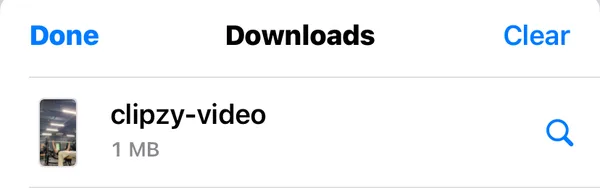
Safari doesn't put downloads straight into Photos. When the download finishes, tap the page-menu icon at the left of the address bar (it shows a small blue arrow) and choose Downloads, or open the Files app and go to Browse → On My iPhone (or iCloud Drive) → Downloads.
Step 4: Move It to Photos
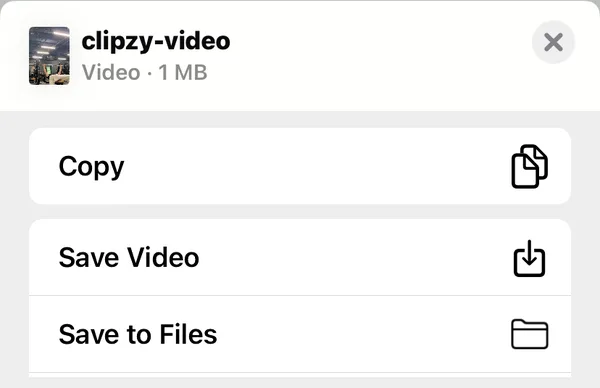
Open the video from Safari's Downloads list (or the Files app), tap the Share button and choose Save Video. It now appears in your Camera Roll, ready to edit in CapCut or iMovie or repost. After that you can delete the copy in Downloads to save space.
Only Need the Sound?
If you want the song or voiceover rather than the video, use the Instagram audio downloader: same steps, but it saves an MP3. Audio files stay in Files → Downloads, because Photos doesn't store audio.
Common iPhone Problems
- Nothing happens after tapping Download: you are probably inside Instagram's in-app browser. Open the page in Safari.
- The video plays in a new tab instead of downloading: tap the Share button on that tab and choose Save Video.
- "Private" or no result: the account is private, or the Reel was deleted. Only public Reels can be saved.
- Can't find the file: check Files → Recents, or search the Files app for the Reel's name.
- Download stopped halfway: keep Safari open and on screen until it finishes; iOS can pause background tabs.
Is It Safe for My Instagram Account?
Yes. Clipzy never asks for your Instagram username or password, so nothing touches your account, and Instagram doesn't notify creators when a public Reel is downloaded. Save your own Reels freely; for anyone else's, keep them for personal use or ask before reposting.
Frequently Asked Questions
Do I need an app to download Reels on iPhone?
No. Safari and the Clipzy website are enough; there is nothing to install.
What quality will the Reel be?
The resolution Instagram serves for that Reel, usually 1080×1920 for a vertical Reel.
Does it work on iPad?
Yes. The steps are the same in Safari on iPad, and the file goes to Files → Downloads.
Can I save Story Highlights on iPhone?
Yes. Copy the link to a public Highlight and follow the same steps. Regular 24-hour Stories are not supported.
For every other device and edge case, read the complete Instagram Reels download guide, or go straight to the Instagram downloader.