
Instagram Reels are some of the most repurposed videos online. Creators pull them into compilations, brands archive them for reporting, and viewers simply want to keep a favorite clip. Yet Instagram still gives you no way to save a Reel as a real video file. This guide covers the whole process end to end: how to get a true HD copy, how it works on every device, what can't be downloaded, and how to fix the most common errors.
Why the Save Button and Screen Recording Fall Short
Tapping the bookmark icon on a Reel only adds it to a private collection inside Instagram. It does not create a file on your device, so you can't open it in an editor, send it outside Instagram, or move it to your camera roll.
Screen recording is the usual workaround, but it compresses the video twice, adds visible artifacts, and often captures your status bar or a notification by accident. If you want the same file the creator uploaded, you need a tool that fetches the video directly instead of recording your screen.
How to Download an Instagram Reel in HD
- Open the Reel in the Instagram app or on instagram.com.
- Tap the three-dot menu (⋯) or the Share icon and choose "Copy Link."
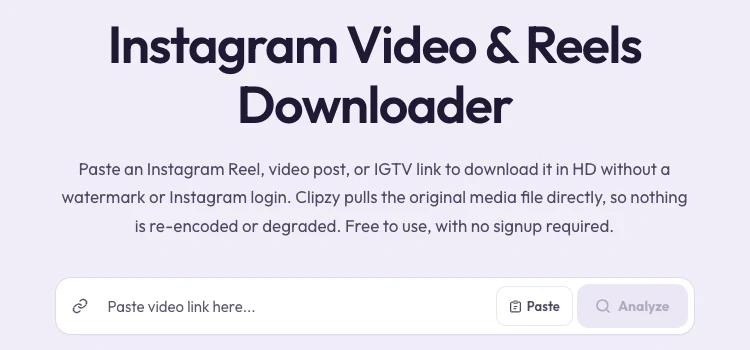
- Go to the Instagram Downloader on Clipzy.
- Paste the link into the input box and tap Download.
- Choose the HD option and save the MP4 to your device.
If a Reel was posted at 1080×1920, that's the resolution you get from Clipzy: the original file, not a recompressed copy. Clipzy doesn't re-encode or cap quality.
How It Works Behind the Scenes
A Reels downloader reads the public link you paste, finds the video file Instagram already serves for that post, and hands it back to you as an MP4. It never needs to log into Instagram or touch your account, which is also why it only works for public posts.
Downloading on iPhone, Android and Desktop
iPhone and iPad
Open Safari, go to Clipzy and paste the link. The file lands in the Files app under Downloads. Tap it, then choose "Save Video" from the share sheet to move it into your Camera Roll, where it's easier to find and edit.
Android
In Chrome or any other browser, paste the link into Clipzy and tap Download. Android saves the MP4 to your Downloads folder, and most gallery apps pick it up automatically within a few seconds.
Windows and Mac
On instagram.com, open the Reel, click the Share (paper plane) icon and choose "Copy link." Paste it into Clipzy in any browser. The file saves to your default downloads folder.
Why You Don't Need a Downloader App
Many Instagram downloader apps ask for broad permissions, show aggressive ads, or ask you to log into Instagram through their app, which puts your account at risk. A browser-based tool avoids all of that:
- Nothing to install, so no storage used and no permissions to review
- No Instagram login, ever, so your account stays safe
- Works the same on any phone, tablet or computer
- No risk of the app disappearing from the store or going unmaintained
The golden rule: never enter your Instagram username or password into a third-party site. A legitimate downloader only needs the public link.
What You Can and Can't Download
- Reels: yes, in the original resolution
- Video posts on the main feed: yes, the same way as Reels
- IGTV-style longer uploads: yes, as long as the account is public
- Story Highlights: yes, because Highlights have a stable, shareable link
- Regular 24-hour Stories: usually not, since they have no permanent public link
- Carousel posts: only the video items inside them
- Private accounts: no, because no login-free tool can see private content
Public vs. Private Accounts
This is the most common point of confusion. Any downloader that doesn't ask for your login, including Clipzy, can only reach content that's publicly visible. For a private account, the only option is to follow it and use Instagram's own Save to collection feature, which still won't give you a file.
Saving Just the Audio as MP3
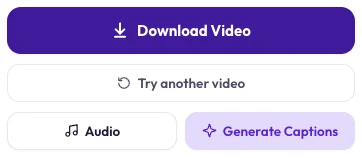
If you only want the sound, whether to identify a track, use it as a reference or reuse a voiceover, you don't need a separate tool. On the results screen in the Instagram Downloader, tap the "Audio" button next to the quality options to save the track as an MP3.
Troubleshooting: When a Download Fails
- "Private or unavailable": the account is private, or the Reel was deleted or archived. Open the link in a logged-out browser window to check.
- Nothing happens after pasting: make sure you copied the link with "Copy Link," not text from the caption or a profile URL.
- Age-restricted posts: these require a logged-in viewer, so login-free tools can't fetch them.
- Link shared in a DM: it usually works fine, as long as it points to a public post.
- Can't find the file on iPhone: check the Files app under Downloads, then use "Save Video" to move it to Photos.
Keeping Quality High When Reposting
If you plan to repost a Reel to TikTok or YouTube Shorts, always start from an HD download rather than a screen recording. Every extra layer of compression shows at full screen, and a clean source gives you room to crop or trim without visible loss.
Reposting Responsibly
Downloading your own Reels to repurpose on other platforms is completely standard. For anyone else's content, credit the creator clearly and ask first, especially for anything used commercially.
Frequently Asked Questions
Is downloading Instagram Reels in HD free?
Yes. Clipzy is free, has no quality cap, and needs no account or subscription.
What file format do I get?
Reels and videos download as standard MP4 files that play on every phone, editor and platform. Audio downloads as MP3.
Does downloading a Reel notify the creator?
No. Instagram does not notify users when their public content is viewed or downloaded through an external link.
Is it safe for my Instagram account?
Yes. Clipzy never asks for your Instagram login, so there is no way for it to affect your account.
Does the original audio come with the video?
Yes. The audio downloads with the video exactly as it was posted, whether it's original sound or a licensed track.
Start saving at the Instagram Downloader, or use the same no-app flow for TikTok, Facebook and Pinterest. More guides live on the blog.