
Tapping the bookmark on a Reel keeps it in your Saved collection, but you can't edit it, send it on WhatsApp or keep it if the post is deleted. To get the video file on Android, you need the Reel's link and your browser.
Step 1: Copy the Reel Link
Open the Reel or video post, tap the Share icon (the paper plane), then Copy link.
Step 2: Paste It into Clipzy in Chrome
- Open Chrome (or Samsung Internet) and go to the Instagram video downloader.
- Tap the paste button. If Clipzy spots the link you just copied, tap Use it.
- Tap the search button, pick a quality and tap Download Video.
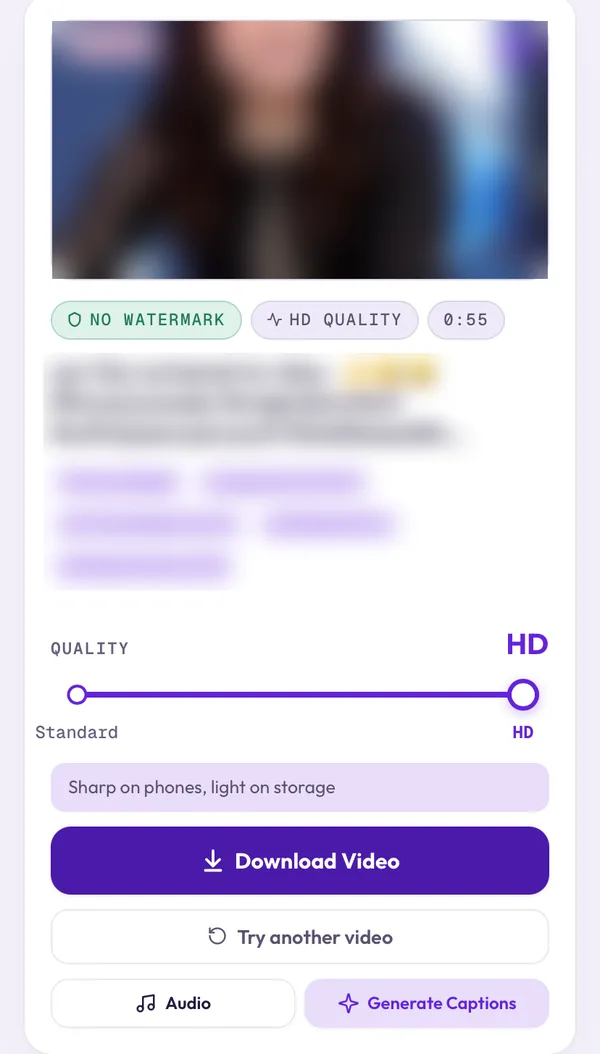
Step 3: Find the Video
When Chrome shows Download complete, tap Open. Later you'll find it in Files → Downloads, and on most phones also in Gallery or Google Photos under a Download folder.
Use Clipzy often? Install it from Chrome: tap the purple download button at the top right, then Install. It then opens from your home screen like an app, with no Play Store download.
Common Problems
- Private account: only public posts can be downloaded.
- Nothing happens after tapping Download: you opened Clipzy inside Instagram's browser. Tap ⋮ and choose Open in Chrome.
- Carousel posts: swipe to the video you want before copying the link.
Frequently Asked Questions
Do I need an APK or an app?
No. Clipzy runs in your browser. Avoid downloader APKs from outside the Play Store: they can carry adware.
Can I save only the audio?
Yes, tap Audio, or use the Instagram audio downloader.
On an iPhone? See how to download Instagram Reels on iPhone.