
The Download button in the YouTube app needs YouTube Premium, and even then the video stays locked inside the app. You can't open it in Photos, edit it in CapCut or send it to a friend. To get a real MP4 file on your iPhone, all you need is Safari and the video's link.
Step 1: Copy the Video Link in the YouTube App
Open the video and tap Share under the player, then Copy link. For a Short, tap the Share arrow on the right side of the screen, then Copy link. Both give you a link that starts with youtu.be or youtube.com/shorts, and Clipzy reads either one.
Step 2: Paste It into Clipzy in Safari
- Open Safari and go to the YouTube video downloader.
- Tap the paste button, then the search button.
- Wait a few seconds while Clipzy finds every quality the video has.
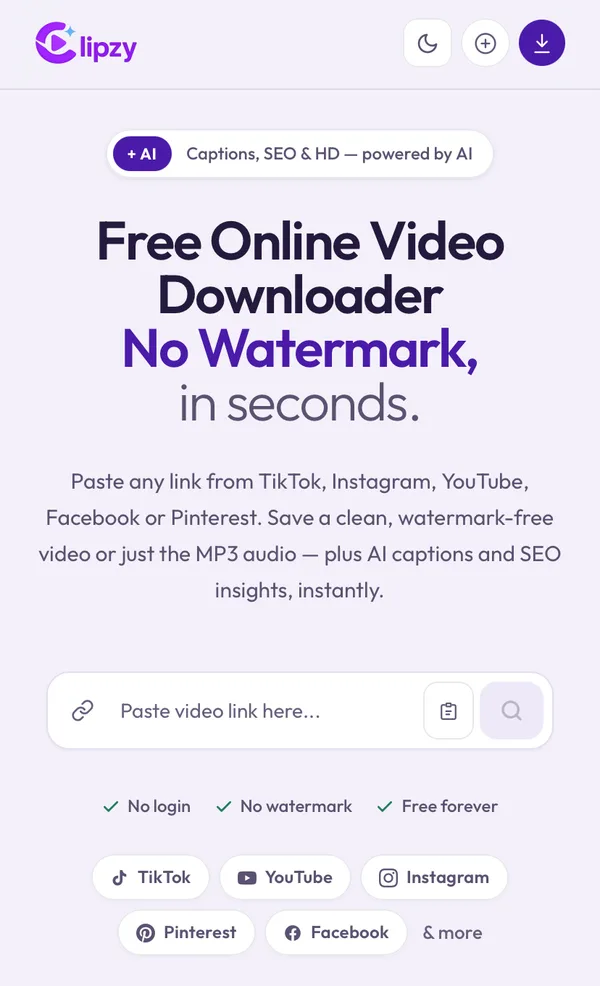
Open Clipzy in Safari itself, not inside the YouTube or Instagram in-app browser. In-app browsers often can't save files.
Step 3: Pick a Quality and Download
Move the quality slider to the size you want. Clipzy shows the file size for each step before you download, so you can keep a long video small on a full phone. 720p looks sharp on an iPhone screen; pick 1080p or higher only if you plan to edit the video or watch it on a bigger screen. Then tap Download Video.
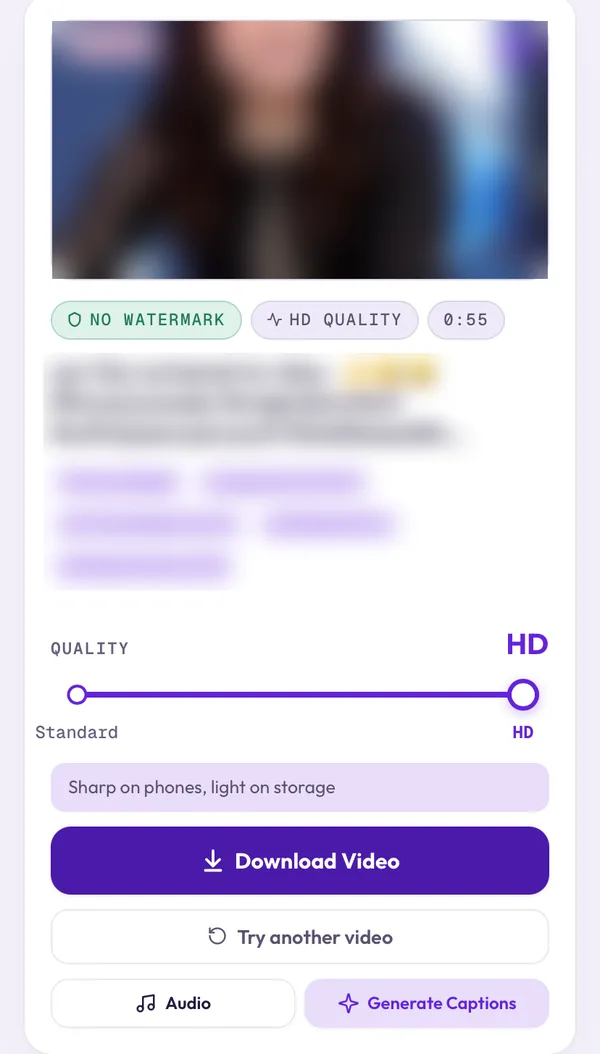
HD and 4K downloads take a little longer, because YouTube sends the picture and the sound separately and Clipzy joins them for you. Read why HD YouTube downloads take longer if you're curious.
Step 4: Save the Video to Photos
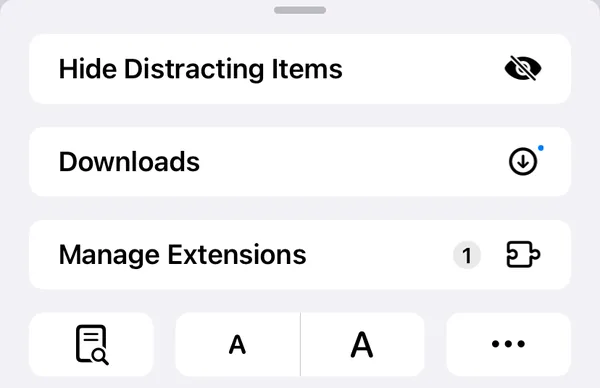
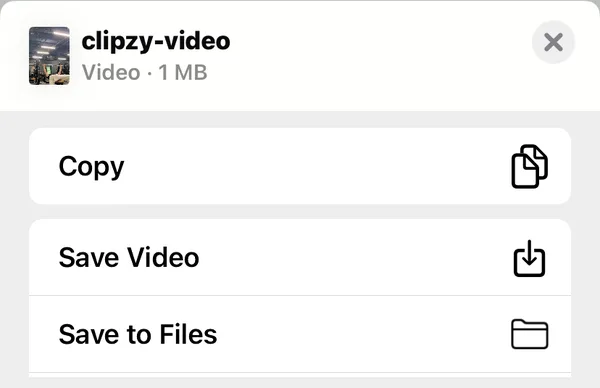
When the download finishes, tap the aA button (or the download arrow) at the left of Safari's address bar and choose Downloads. Tap the video to open it, tap Share, then Save Video. The video now sits in your Photos app with your other videos.
Only Want the Sound?
For podcasts, lectures or music from your own uploads, tap Audio instead of Download Video, or use the YouTube to MP3 converter. The MP3 lands in Files → Downloads, where you can play it offline.
Common iPhone Problems
- Nothing happens after tapping Download: you are in an in-app browser. Open the page in Safari.
- The video opens in a new tab and plays: tap Share on that tab and choose Save Video.
- "Video unavailable": the video is private, age-restricted, or blocked in your region.
- Can't find the file: open the Files app and check Recents or Downloads.
- Download is slow: pick a lower quality. A 10-minute video in 4K can be several hundred MB.
Frequently Asked Questions
Do I need YouTube Premium or an account?
No. Clipzy works with the link to any public video, with no YouTube login and no Clipzy account.
Does this work for YouTube Shorts?
Yes. Copy the Short's link the same way, or use the YouTube Shorts downloader.
Does it work on iPad?
Yes. The steps are the same in Safari on iPad.
Can I download someone else's video?
Clipzy only reaches public videos. Download your own uploads freely; if you save someone else's video, keep it for personal use and credit the creator if you share it. YouTube's Terms of Service govern how downloaded content can be reused.
For desktop and Android steps, read the complete YouTube download guide, or see how to use Clipzy on every device.